
This is an old revision of the document!
Table of Contents

Rosy Web Application
(Release version 1.1.2)
User Manual
(Admin Portal)
1. Introduction
Welcome to the User Manual for ROSY – Axess Law’s Proprietary Conveyancing System. Developed with the vision of redefining real estate legal services in Canada, ROSY combines innovation, security, and simplicity to streamline the conveyancing process for legal professionals. Designed exclusively for Axess Law's internal teams and partners, this web-based application offers a secure virtual environment to manage real estate transactions efficiently. Whether preparing documents, tracking deal progress, or managing client information, ROSY provides a seamless and intuitive experience that reflects Axess Law’s commitment to accessibility, transparency, and cutting-edge legal solutions.
2. General Information
ROSY is a secure, web-based application specifically developed to support and enhance the conveyancing processes used by Axess Law. The platform allows legal professionals to manage real estate transactions efficiently, from initial client intake to final closing. ROSY supports multiple user roles with varying access levels, ensuring that sensitive information remains protected while allowing seamless collaboration. The system is designed to operate across modern browsers and devices, requiring only a stable internet connection for access. All data entered into ROSY is stored securely, with regular backups and compliance with industry-standard data protection protocols. This manual provides a comprehensive overview of the application’s capabilities and how to use them effectively.
2.1 System Overview
The web application has the following functionalities:
- File Management Process
- Automated Email Templates
- Communication Channels
- Document Control
- Transaction Deal Stage Queues and Tasks
- Dynamic Roles and Permissions
- Typeforms, Triggers, and Questions
- Syngrafii Integration
- Transaction Closing Date Calendar
- Dashboard Development
- Title Search Integration
- Treefort Integration
- API Exposure and Integration
3. Getting Started
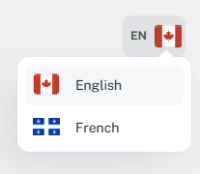
3.1 Language Option
ROSY supports multiple language options to accommodate users with diverse language preferences. Users can easily switch between available languages for a more personalized experience.
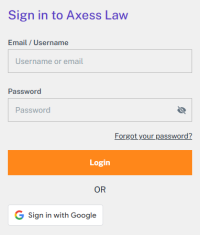
3.2 Sign In
The application features a secure login option to ensure authorized access to user accounts. Users must enter their credentials to access the system and work within the platform.
3.2.1 Valid Information
First, enter your valid username and valid password, and then click the login button.
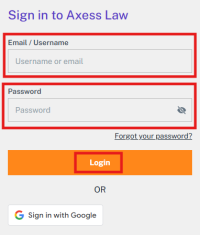
Your application will be successfully logged in.
3.2.2 Invalid Information
If your username or password is incorrect, the system will notify you with a message saying 'Invalid username or password'.
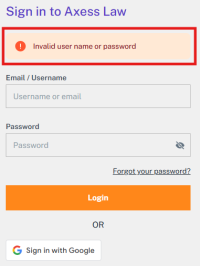
Enter the correct username and password and try logging in again. If the credentials are accurate, you will be logged in successfully; otherwise, the same error will be displayed again.
3.2.3 Reset Forgotten Password
The system provides a 'Forgot Password' option if you do not remember your password. You can click on it to recover your password.
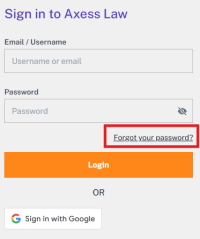
After clicking on 'Forgot Password', a screen will appear where you can enter your email address and click on 'Send Request' to submit a password reset request.
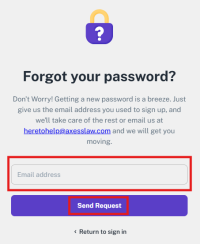
When you enter your email and send the request, you will see a screen displaying the message: “Verification Email Sent.”
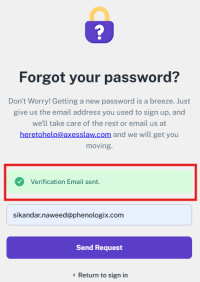
Then you need to check your email. You should have received an email containing a confirmation link—click on that link to proceed.
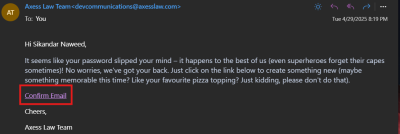
After clicking on the link, you will be directed to a screen where you can set your new password and then submit it.
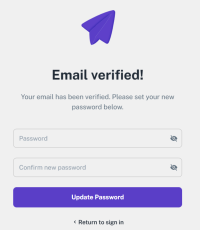
On this screen, you need to enter your new password and then re-enter the same password for confirmation. After that, click on “Update Password” to successfully reset your password.
3.2.4 Sign in with Google
The application offers a “Sign in with Google” feature for quick and secure access. This allows users to log in using their existing Google account credentials without creating a separate login.
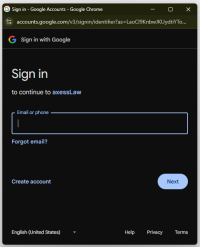
If you want to continue by signing in with Google, you can enter the email of your existing Google account, click Next, and follow the Google sign-in steps to log in through your Google account.
4. User Management
This application features a comprehensive user management system that allows users to fully manage their accounts. Within this system, you can update your profile information, such as name, email, and contact details, as well as customize your account settings according to your preferences. This includes options for changing your password and controlling privacy settings, ensuring a more personalized and secure user experience.
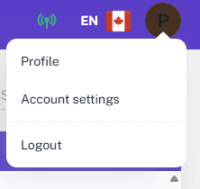
4.1 Profile
4.1.1 Change Profile Image
The application allows users to change their profile image easily from their account settings. This helps personalize the user experience and keeps profiles up to date.